
Anti Brainrot
The anti brain rot extension for Chrome and app for Android.
Puts the things that eat your day behind a friction timer: feeds and Shorts on YouTube, the feeds of TikTok, Instagram, X, Reddit and the rest, adult sites and their media, the searches you have banned, and on the phone whole apps. Each one is blocked outright or paused with a countdown and a timed pass; safe search is forced on every engine while the adult filter is on. The filter locks itself during your focus hours and can be made hard to remove. Everything is a setting; the defaults carry the opinion, the timer carries the friction.
What it does
-
A friction timer
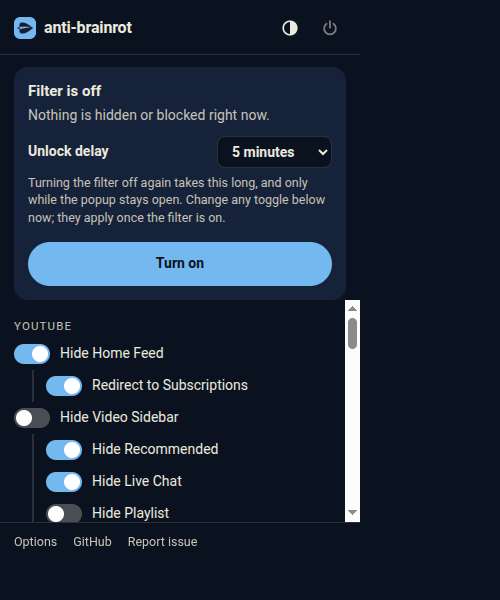
Turning the filter off starts a countdown of a length you chose when you turned it on, from 30 seconds to an hour. It only runs while the popup is open. Click away and the filter stays on.
-
Tighten any time, loosen only while off
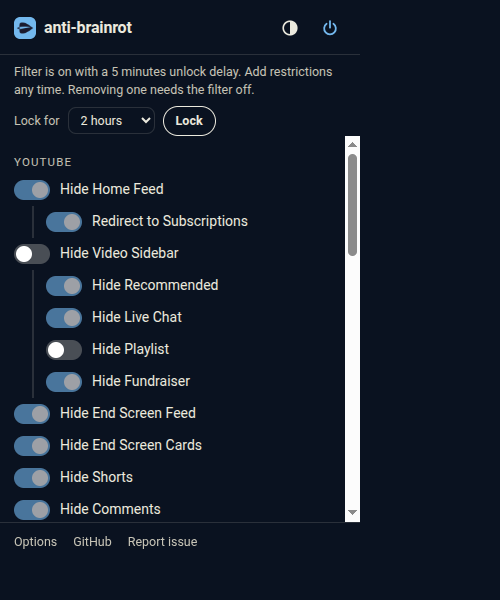
While the filter is on you can add restrictions immediately. Removing one, shortening the delay, or allowing a category, channel or site waits until the filter is off.
-
Distracting sites
Presets for the feeds and short-video surfaces of TikTok, Instagram, X, Reddit, Facebook, Threads and more, plus your own patterns and exceptions. Pause with a countdown and a timed pass from a daily budget, or block outright.
-
Adult site blocker
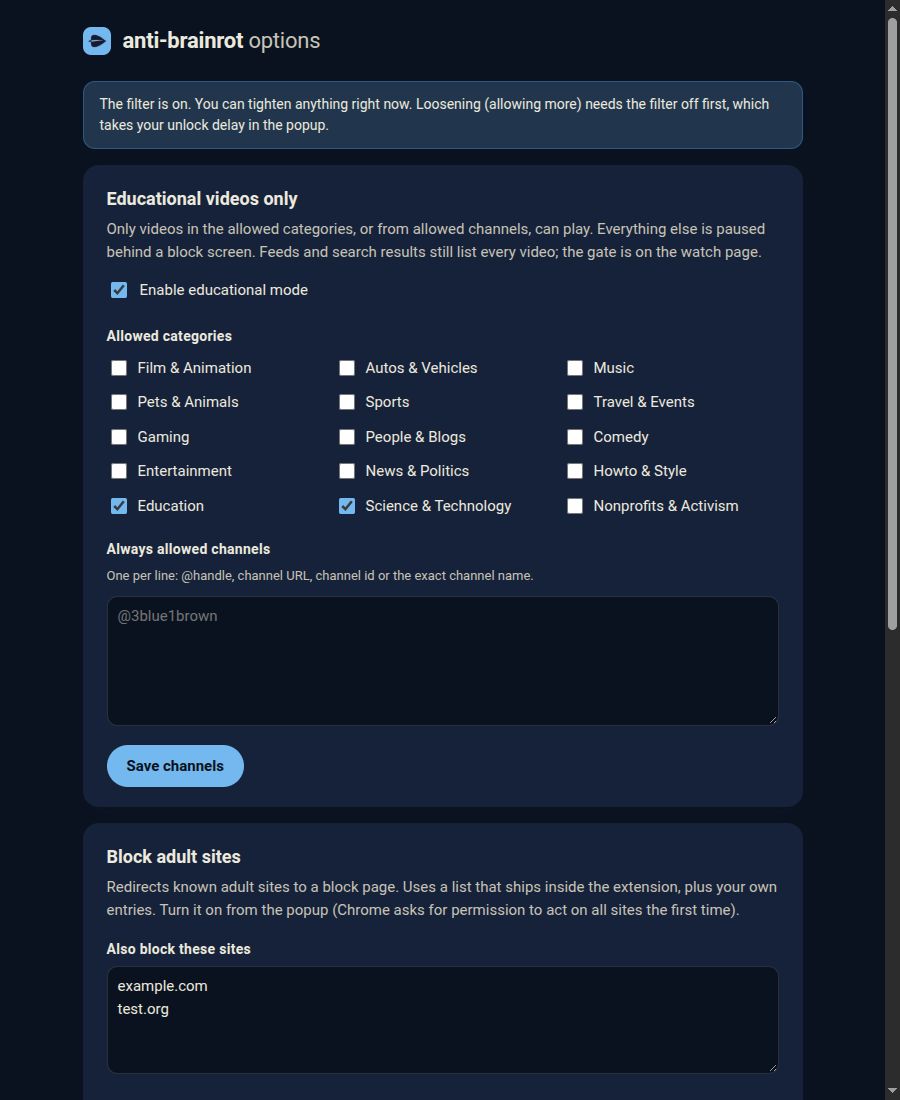
A bundled list of 15,000 domains plus hostname keyword rules redirect to a block page, everywhere in the browser, and the images, video and frames those hosts serve are blocked on every other page. Under it, Force safe search gives every search on Google, Bing, DuckDuckGo, Yahoo, Yandex and Brave the engine's strict setting, images and videos included, and Restrict YouTube turns on YouTube's Restricted Mode. Add your own sites, or allow false positives, in the options.
-
Blocked keywords
Words you never want to search for or open. Any address whose path or query carries one of them, as a whole word, goes to the block page: a search on any engine, a subreddit, a tag page. Adding a word works any time; taking one off waits until the filter is off.
-
Locked hours
A weekly schedule during which the filter turns itself on and cannot be turned off, and a Lock for N hours button for the moments you know you need it.
-
Prevent removal
The extensions page is sent to a block page while the filter is on, and a one-file browser policy makes Chrome refuse to remove or turn the extension off at all. How it works.
-
Shorts hidden by default
Shorts shelves, guide entries, search results and notifications are hidden, and any Shorts link opens as a normal watch page. It is a toggle like every other: on from the first moment, off only with the filter.
-
A YouTube filter you configure
The same toggles Unhook offers: home feed with a redirect to Subscriptions, the video sidebar and its parts, end screens, comments, mixes, merch, notifications, search shelves, Explore, autoplay and more.
-
Educational videos only
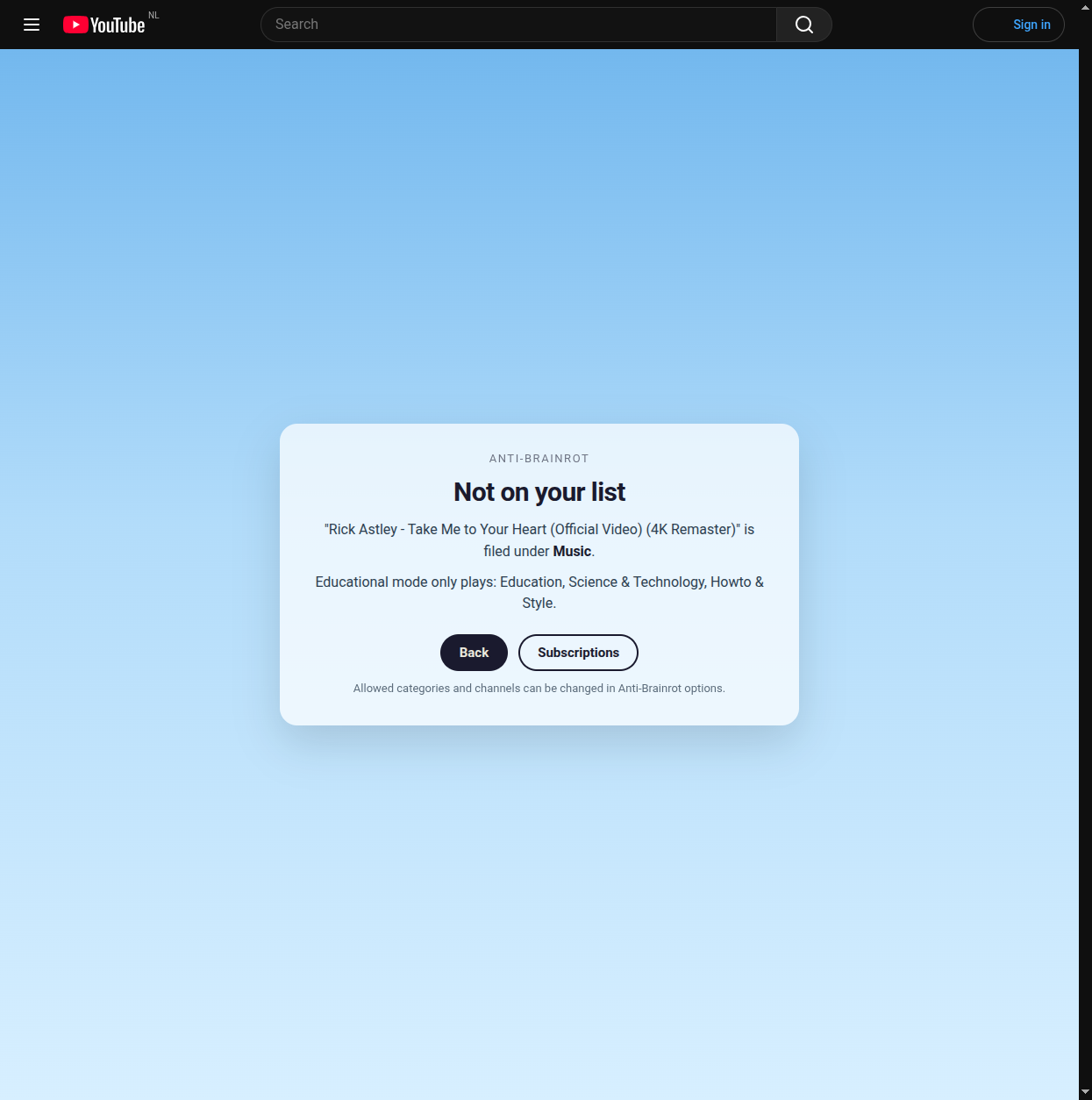
Optional. Only videos in the categories you allow, or from channels you list, can play. Everything else is paused behind a block screen.
-
More YouTube options
Hide or blur thumbnails, hide view counts, likes and durations, hide filter chips and the posts, news and games shelves, hide search suggestions, or turn YouTube grayscale.
-
Android app
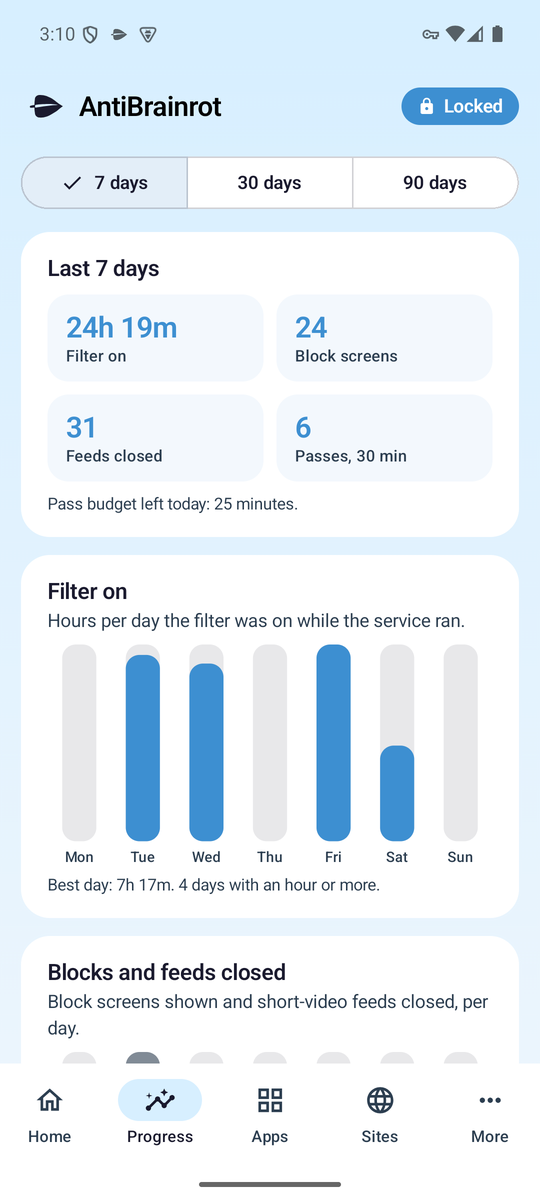
An app and site blocker in the spirit of AppBlock: every app and every site gets its own rule, blocked outright or a daily timer, an optional block on installing new apps, adult sites filtered at the DNS level with forced safe search and YouTube Restricted Mode under it, blocked keywords, locked hours, strict mode, Prevent uninstall, and a Progress tab with ninety days of counters and charts. An APK on every release.
How the timer works
- With the filter off, pick an unlock delay in the popup and press Turn on.
- To turn the filter off, press the power button. A countdown of that length starts inside the popup.
- Keep the popup open until it reaches zero. Closing it, clicking away or pressing Keep it on cancels the countdown and the filter stays on.
- When the countdown ends the filter turns off and every toggle becomes editable again.
Every toggle, Hide Shorts included, goes off with the filter and comes back with it.
Educational videos only
YouTube assigns every video one of 15 categories. Anti Brainrot reads that category on the watch page and compares it with your allow list. Videos from allowed channels always play.
Limits worth knowing
- Feeds and search results still list every video. The gate is the watch page. You can search freely; you just cannot watch what is not allowed.
- Category is set by the uploader. Some educational content sits in People and Blogs or Entertainment. Add those channels to the allow list.
- A video whose category cannot be read stays blocked.
Adult site blocker
Off by default. Switching it on asks Chrome for permission to act on all sites, because a redirect rule cannot work otherwise. The list is generated from public blocklists intersected with the Tranco top million, plus a curated core, and ships inside the extension. Navigations to a listed site land on the block page; the images, video, frames and scripts a listed site serves are blocked on every other page, so a forum or a results page cannot show them. Two switches sit under the filter, both on by default: Force safe search adds each engine's strict parameter to every search, the same one Chrome's own policy uses, and Restrict YouTube sends YouTube's Restricted Mode header with every request. A blocked keywords list, its own switch, catches any address that carries one of your words.
Limits worth knowing
- It is a browser extension rule, not a network filter. Other browsers and apps on the machine are not affected.
- No filter here judges a picture by its content. A page that is not on the list, not a search engine and has no blocked word in its address still shows what it shows.
- No list is complete. Sites it misses can be added in the options; sites it catches by mistake can be allowed there. Allowed sites win over blocked ones.
- Allowing a site, like every other loosening, waits until the filter is off.
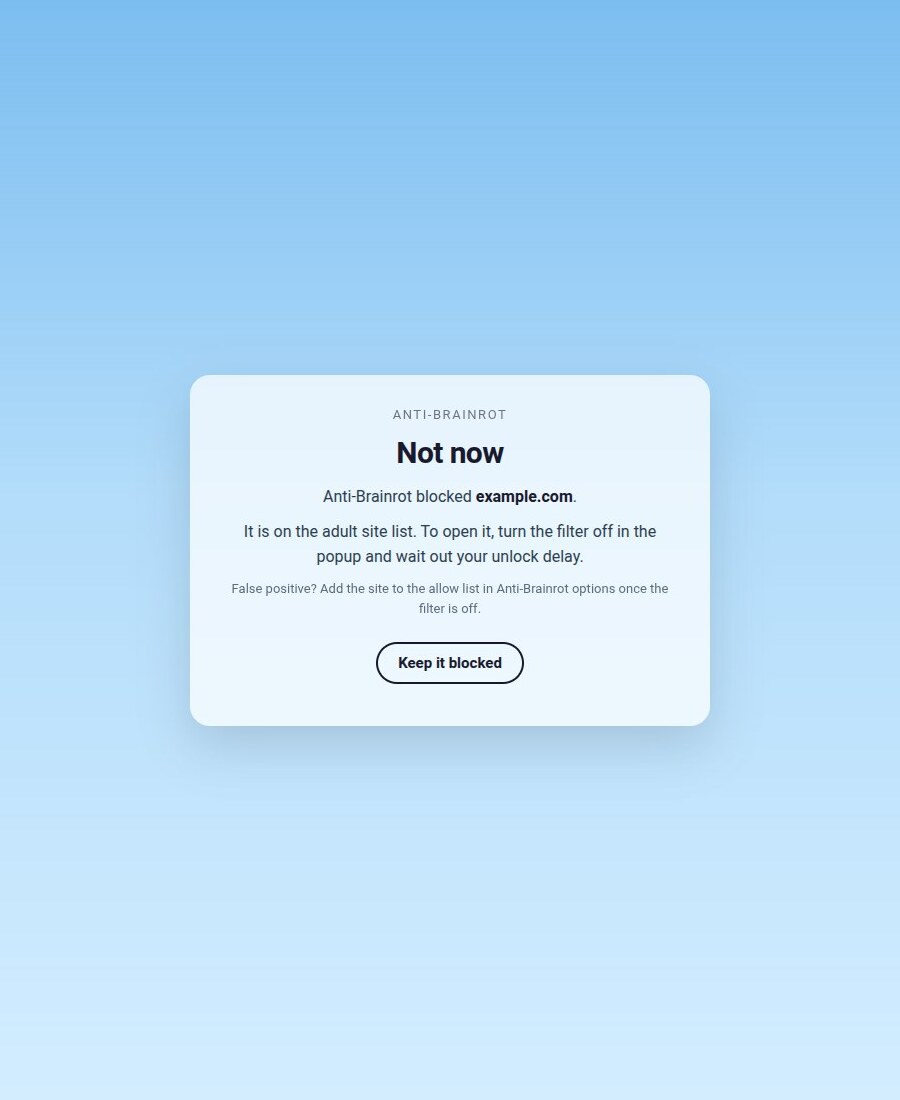
Distracting sites
Pick presets in the options or write patterns of your own: site.com for the whole site, site.com/ for its front page only, site.com/path for everything under a path. Exceptions keep the useful corner of a blocked site open.
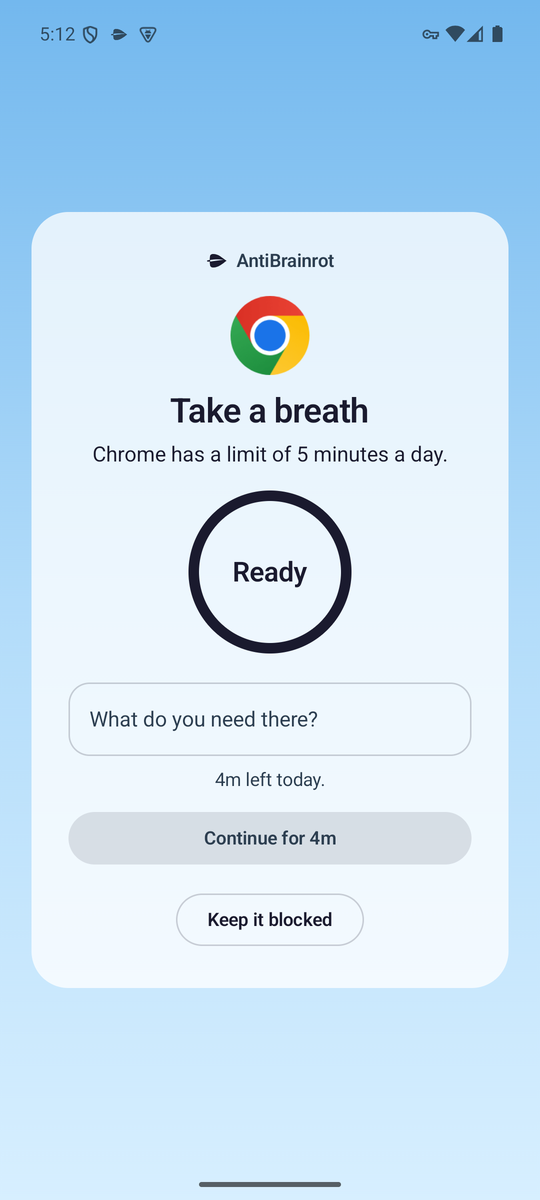
In pause mode a countdown stands between you and the site. It restarts if you switch tabs. Write a one-line intention if you turned that on, then continue for a few minutes. Passes are charged up front against a daily budget, the site turns grayscale while the pass runs, a warning appears thirty seconds before it ends, and the same site cools down before it offers another pass. In block mode there is no pass at all.
Full page loads are stopped before any request is made. In-app navigation is caught by a small watcher that only runs on the sites you enabled.
Locked hours
Set days and a window in the options. During the window the filter turns itself on within a minute and the power button is disabled. Not even the countdown can turn it off.
Lock for N hours in the popup does the same for an ad hoc stretch. Widening a lock is immediate; narrowing one waits until the filter is off, like every other loosening.
Small nudges
- A reason line you write once and see on every block page and in the popup.
- A count of today's blocks and passes in the popup.
- Hide Shorts is on by default and behaves like every other toggle.
On the phone
The Android app is an app blocker in the spirit of AppBlock, built with the phone's own tools. Every app and every site on your list gets its own rule. Blocked ones get a block screen the moment they open. Timed ones get a daily limit: they open on their own, only the time they are in front counts, so a limit of thirty minutes is thirty minutes of use, and a pause with an intention line can stand before them if you want that. When the minutes are gone they stay blocked until midnight. Rules follow the package name, so an uninstalled app comes back with its rule, and an optional install block keeps the app stores and the package installer shut while the filter is on. Sites are caught in the address bar of Chrome, Firefox, Samsung Internet, Brave, Edge, Opera, Vivaldi and DuckDuckGo. A DNS-only VPN answers lookups for adult hosts and blocked sites with "no such name", answers Google search, Bing, DuckDuckGo and YouTube with the addresses of their forced safe search hosts while you want that, and forwards everything else to the network's resolver, so no traffic leaves the phone through the app. A blocked keywords list puts the block screen over any page whose address carries one of your words. The friction timer, locked hours, Lock for N hours and the loosen-only-while-off rule are the same as in the extension. Strict mode closes the Settings pages that could disable the app while the filter is on, and Prevent uninstall makes the app a device admin that Android refuses to remove. A minute before a timer runs out, a notification says so. The Progress tab keeps ninety days of counters: how long the filter was on, block screens, time in timed apps and sessions, as totals over 7, 30 or 90 days, bars per day, a streak, and the apps that used the most time or needed the most block screens.
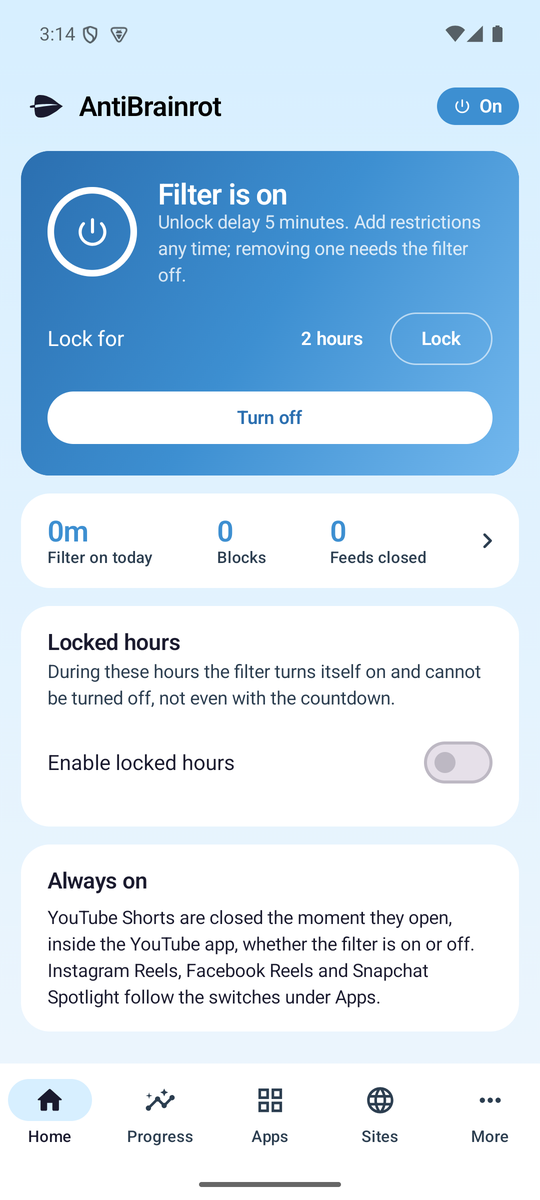
- Rules apply to whole apps and whole sites. Beyond the browser address bar nothing inside another app is read, so there is no Shorts or Reels detection on the phone; block or time the app instead.
- Site rules are per host, and the address bar check covers the listed browsers. Blocked sites are also stopped at the DNS level in every app; Private DNS and browsers with their own DNS over HTTPS setting bypass that part, and the app warns when Private DNS is on.
- Sideloaded apps on Android 13 and later need the Allow restricted settings step before the accessibility service can be turned on. The Setup screen walks through it.
Prevent removal
On the phone, Prevent uninstall makes the app a device admin that Android refuses to remove. Chrome gives an extension no such hook, so the extension does it in two layers.
In the extension
Switch on Prevent removal in the popup; Chrome asks for the tabs permission once. While it and the filter are on, the extensions page, where the Remove button and the on/off switch live, is sent to a block page as soon as it opens, the way strict mode leaves App info on the phone. Your other extensions stay reachable: a Manage extensions button under the switch runs the unlock delay, then opens the page for five minutes. Turning the feature off waits until the filter is off.
The toolbar icon's own Remove from Chrome menu still works. That is the door only a policy can close.
With a browser policy
Chrome lets an administrator force-install an extension. A force-installed extension has no Remove button, no on/off switch and no toolbar removal, and Chrome keeps it updated by itself. The policy is one file that needs administrator rights to create and to delete, which is the point.
- On Linux, create
/etc/opt/chrome/policies/managed/anti-brainrot.json(for Chromium,/etc/chromium/policies/managed/) with this content. The options page shows a one-line command that does it.{ "ExtensionInstallForcelist": [ "ibcicobbbpfmonjbhpmllnjgdkedneop;https://danieltyukov.github.io/anti-brainrot/updates.xml" ] } - Restart Chrome, or open
chrome://policyand click Reload policies. Chrome downloads the CRX attached to the release thatupdates.xmlon this site names, replaces the copy you loaded unpacked (your settings carry over, they are keyed by the pinned extension id) and marks it "installed by your administrator". - The options page reports "installed by policy" once that took effect.
To undo, delete the file and restart Chrome. Chrome then removes the extension.
- Windows and macOS honour a force-install of an extension outside the Chrome Web Store only on a managed machine: joined to a domain, managed by MDM, or enrolled in Chrome Enterprise Core. There the same string goes into the registry under
HKLM\SOFTWARE\Policies\Google\Chrome\ExtensionInstallForcelistor thecom.google.Chromemanaged preferences. - Once the extension is on the Chrome Web Store the entry becomes the bare id and works on any machine.
Install
Android
Download anti-brainrot-<version>.apk from the latest release on the phone, open it, allow installing from that source, then follow the Setup screen: it asks for the accessibility service and Display over other apps (both required), and on Android 13 or later it explains the Allow restricted settings step for sideloaded apps. Android 8 or newer.
Chrome
Chrome Web Store: coming soon.
Until then, install it from a release:
- Download the zip from the latest release.
- Unzip it.
- Open
chrome://extensions. - Turn on Developer mode, top right.
- Click Load unpacked and pick the unzipped folder, the one that contains
manifest.json.
Pin the leaf icon to the toolbar. The filter is on from the first moment.
Needs Chrome 111 or newer, or any Chromium browser with Manifest V3 and :has() support, such as Edge, Brave, Arc or Vivaldi. Every release also carries a signed .crx for the policy install.